Download TZX-713B V2.1 firmware image (514.6 MB)
Showing posts with label 7. Show all posts
Showing posts with label 7. Show all posts
Friday, July 15, 2016
How to fix itechie A88 7 inch tablet stuck in boot logo
How to Fix iTechie A88 Android Tablet Computer unable to boot up and is stuck in boot logo.
 |
| iTechie A88 tablet stuck on boot logo - image by MZtech |
“I couldn’t determine exactly what caused my Android Tablet to stuck in boot logo every time I turn it on. I haven’t installed any update or flashed its firmware.”
 |
| iTechie A88 Tablet (Black) - image by MZtech |
Specifications:
- Model Name: iTechie A88
- Product Type: Wi-Fi Tablet Computer
- Screen Size: 7.0” ; 800 x 480 resolution ; 5-point capacitive touch screen
- Operating System: Android 4.2 Jelly Bean (upgradeable)
- Processor: AllWinner A13 1.0Ghz ARMv7
- RAM: 512MB
- Device Memory: 4.0 GB NAND Fast Flash
- Connectivity: Wi-Fi 802.11 b/g/n
- Camera: 0.3 MP front ; 2.0 MP back with flash
- Battery: 2000 mAh (milliampere-hour)
Hard Reset:
iTechie A88 recovery mode can be accessed by pressing altogether the power button, volume up (+) button and volume down (-) button. If you can access recovery options, all you have to do is select the reset to factory settings. It could fix “stuck in boot logo” issue.
Flashing Firmware:“I tried accessing recovery mode but it boots directly and stops at logo again. If you are unable to access the recovery mode like me, you need to flash the stock firmware image to the device in order to fix it.”
Things you’ll need:
- Firmware image file
- LiveSuit v1.11 application for your flashing tool.
To make sure you download the correct firmware version for your Android tablet, check on the motherboard number /build number. Unlock download link below.
 |
| iTechie A88 motherboard build number - image by MZtech |
How To Flash Firmware:
- Run LiveSuit application and click yes on whether or not to enter upgrade guide.
- Select General Upgrade Mode.
- Select Yes on Whether to select new image file.
- Browse and select the downloaded firmware image file.
- Make sure your tablet is off before connecting to PC.
- Connect tablet to Computer with USB (Universal Serial Bus) cord.
- Press and hold Power button and volume up (+) button.
- Release buttons once connection is detected by LiveSuit application.
- Flashing will start right away.
- Flashing will take a couple of minutes. Secure your USB connection to make sure your tablet doesn’t disconnect while flashing to avoid error.
- You will see a prompt if the flashing process finished successfully.
- You can now boot your tablet by turning it on. (Note: first boot after flashing may take a little longer than usual.)
- The default language is in Hindu. To change it to back to English, go to settings –> select Language & input (letter A icon) –> select the very first option in the selection on the right side –> scroll down to find English and select it. ( change also the input language of your keyboard).
 |
| LiveSuit application flashing firmware - image by MZtech |
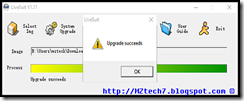 |
| LiveSuit application flashing successful - image by MZtech |
Did this solution helped you? Please let me know by providing your feedback below. If you find this post helpful, dont forget to hit like or share buttons.

How to Root Android N 7 0 Nutella without pc
Root Any Android N 7.0 Nutella smartphone without using Computer .
Do you want to root your android n 7.0 smartphone ? if yes then you are at right place . Today we are here with a guide on How to root Android 7.0 N Nutella by using a android application .
Android 7.0 N is the latest android version from google , Some days ago the update of android N 7.0 touted as Android nutella was pushed in nexus 6P , 5X , 6 , 9 devices . And just within a week of the update ,A recognized Xda developer found the way to get Root access on Android N 7.0 Nutella smartphones .
So lets start the Guide on How to root Android N 7.0 Nutella .
Root Android N 7.0 Nutella by using android app .
As mentioned earlier that we will not use Computer or laptop to root Android N 7.0 Smartphones . All we will use is a Zip file .
How to solve insufficient storage problem in android .
So here is the guide on How to root Android N 7.0 nutella without using pc .
- First of all Download the Supersu root file from Here .
- Download the Supersu in your pc .
- After Downloading the supersu connect your smartphone to pc .
- Now copy the Downloaded file in the root of your sd card .
- After copying disconnect the smartphone from Pc .
- Now turn off your smartphone .
- After complete turn off boot the device in Recovery mode .
- After Booting in to recovery mode you will see many options .
- You have to select " Choose Zip From sd card " .
- Now the rooting procedure will take some time to complete .
- After the successful rooting you will get a Successful root confirmation notification .
- Now go back to main screen and choose " Reboot system Now " .
- And thats All !!!! You have successfully rooted your Android N 7.0 Nutella smartphone without using pc .
If the App show this Device has active root access then it means your device is successfully rooted .
Name and List of devices updating to android N 7.0 .
So this was our guide on How to root Android 7.0 N Nutella without using pc i hope this guide helped you in getting root access on Android 7.0 N Nutella .
Android N 7 0 Name Features And Launch Date
Android N 7.0 Launch Date And Features .
Bell freedom 251 - Worlds Cheapest Smartphone launched at 251 rupees .

Android N 7.0 Release Date .
Android N 7.0 Will be released on 18 march during googles annual developers meeting . Android n will be released by google Ceo Sundar pichai . It is worth mentioning that on 18th march only developer preview will be released for testing android apps . For public use the Android N 7.0 is expected to be rolled out in October .
Best android smartphone below 10,000 rupees .
Battery Optimization

Trick to Buy Xiaomi redmi note 3 in flash sale .
The second confirmed feature of Android 7.0 N is The multi window mode :-


 One of the major steps google took in the latest android version 7.0 is increased Security . Android is considered as one of the least secure operating system in the world so just to overcome this google upgrade security features in Android N .

As we already mentioned earlier that at first only developers image will be released . The first one to receive android N 7.0 update will be the nexus series and android one device .
So this was our guide on Android 7.0 Name Features and Launch date .
So google Android 7.0 N is confirmed and today we are here with the name of android N and its launch date features and name .
With more then 82.2% mobile active users android is the largest Mobile-tablet Os in the world followed by Ios with having more then 13.9% . Google recently launched its android M 6.0 marshmallow update which came with high security and many features . Now after approx 5 months google is all ready to launch the successor of android marshmallow . So today we are here with the Android 7.0 Name Launch date and Features .
Bell freedom 251 - Worlds Cheapest Smartphone launched at 251 rupees .
Android N 7.0 Release Date .
Android N 7.0 Will be released on 18 march during googles annual developers meeting . Android n will be released by google Ceo Sundar pichai . It is worth mentioning that on 18th march only developer preview will be released for testing android apps . For public use the Android N 7.0 is expected to be rolled out in October .
Best android smartphone below 10,000 rupees .
Android N 7.0 Features :-
So Starting with the first confirmed feature of android N :-Battery Optimization
One of the first confirmed feature in the latest android N 7.0 is the battery optimization feature which increase the battery life upto 20% . The feature of battery optimization was first introduced in the Android 5.0 Lollipop named as battery saver mode and in Android 6.0 marshmallow it was named as App standby mode , however it is still not clear that what name will it be given in the android n 7.0 but still it is confirmed that The android 7.0 N will come with Battery Saver feature .
Trick to Buy Xiaomi redmi note 3 in flash sale .
The second confirmed feature of Android 7.0 N is The multi window mode :-
Multi window Mode :-
The second confirmed feature about android N 7.0 is the split screen feature which allows you to use multi window on your android smartphone . The feature was also available in the predecessor android version but it didnt worked well so This time android made some improvements in the multi window feature .
No app Drawer :-
Android 7.0 n will come with without app drawer which means the android 7.0 will adopt the ios user interference , However some popular android operating systems like the miui are already using the No app drawer ui .
Increased Security :-
Android N 7.0 Update List .
As we already mentioned earlier that at first only developers image will be released . The first one to receive android N 7.0 update will be the nexus series and android one device .
Android N 7.0 Name
The Name of android 7.0 is still not revealed but still there are some expected name that the latest android could be named .- Android Nutella 7.0
- Android Nougat 7.0
So this was our guide on Android 7.0 Name Features and Launch date .
How to Use Print Screen Feature in Windows 7 8 8 1 10
Do You Know How To Use Print Screen On Your Windows Laptop?
I am certain that everyone who uses a computer knows what print screen is and its purpose. You could find Print Screen Key (PrntScr) on various type of computer keyboard. But even though almost everyone is familiar with this feature, very few are using it.
Print Screen Key - photo by MZtech "On my experience, when I tried to use this feature by pressing the PrntScr Key on the keyboard, I was expecting a prompt would pop up showing me the screen image and give me option whether to save or discard but then nothing showed up. I pressed it again, still nothing happened. I thought then maybe it was automatically saved in a folder somewhere so I started searching through my files but found nothing. I thought then my Print Screen Key doesn’t work. And since I need to capture my whole desktop window, I began searching for applications to download and install on my computer. Only to learn that I was wrong in thinking that my print screen key isn’t working. It actually works perfectly fine, I just don’t know how to use it and how it works."

How does Windows’ Print Screen feature works?
Windows 7/8/10:
1.) Press PrntScr Key
2.) Launch paint.exe application 

 |
| Save captured image in Paint application - image by MZtech |
4.) And you will see the image you captured and could choose whether to save, edit, or discard it.
WINDOWS 10:
Print Screen feature in Windows 10 is much more easier. All you have to do is press the Windows Key and Print Screen Key at the same time in your keyboard.
 |
| Windows and Print Screen Keys - image by MZtech |
 |
| Windows and Print Screen Keys on Keyboard - image by MZtech |
Your screen will blink for a second which signifies that it has captured image of your screen. The image captured is automatically saved inside Capture Folder in your Pictures.
It’s very simple, right? So you need not to download additional application for you to use. Aside from saving some space on your disk, you can avoid the risk of downloading application full of bloat ware, ad ware and worse malware.
You might also want to read on my post about Windows Snipping Tool. It is useful for capturing image of you screen but is more flexible to use because it has some more options.
 |
| What is Windows Snipping Tool And How Do We Use It? |
Download latest Android Lollipop 5 1 stock firmware for Zopo Speed 7 smartphone

Download latest Android Lollipop 5.1 stock firmware for Zopo Speed 7 smartphone from here, here or here. Download latest Android Lollipop 5.1 stock firmware for Zopo Speed 7C smartphone from here. Download latest Android Lollipop 5.1 stock firmware for Zopo Speed 7 Plus smartphone from here.
Firmware details
Archive? Zopo SPEED 7 Android 5.1 20151228-100539 fw
Firmware: Android Lollipop 5.1 stock
Image: S5580C 20151228-101057 lp1 / MP_mt6753_n325bh_s5580bs_zwx_cc_128gbitp24d3_lp1_lte_3m-fdd-cs_mul_20151228-101057_yu
Project: n325bh
Config_version: V1.1.2
Inside archive: firmware + MultiDownloadTool_V1528
Build number: 20151228-100539
Changelog
Made it compatible with the HI551 front camera.
Firmware details
Archive? Zopo SPEED 7 Android 5.1 20151228-100539 fw
Firmware: Android Lollipop 5.1 stock
Image: S5580C 20151228-101057 lp1 / MP_mt6753_n325bh_s5580bs_zwx_cc_128gbitp24d3_lp1_lte_3m-fdd-cs_mul_20151228-101057_yu
Model: Zopo Speed 7 smartphone
Image file size: 906 MB
Platform: Mediatek MT6753Image file size: 906 MB
Project: n325bh
Config_version: V1.1.2
Inside archive: firmware + MultiDownloadTool_V1528
Build number: 20151228-100539
Changelog
Made it compatible with the HI551 front camera.
Increased the snap-shot function using three-finger swiping down.
Caution: Please do not update firmware unless you know what you are doing, you really want it or it is absolutely necessary. Firmware updates may occasionally have bad results, like bricking your device, temporarily or permanently. The firmware update process is done entirely at your own risk. Before attempting to update the firmware, back up your data.
Don’t miss any of our future video tutorials, follow us on Youtube. Like us on Facebook. Add us in your circles on Google+. Watch our photo albums on Flickr. Subscribe now to our newsletter. Biggest firmware download center.
HUA BOX Update Version V1 3 7 Latest Setup Free Download
Hi to all
HUA BOX Version 1.3.7 Released
Add Exynos 7 Direct Unlock Need Root & USB Debugging
Supported Models Listed Below
Samsung
SM-G9200
SM-G9208
SM-G9209
SM-G920A
SM-G920AZ
SM-G920D
SM-G920F
SM-G920FD
SM-G920I
SM-G920K
SM-G920L
SM-G920P
SM-G920R4
SM-G920R7
SM-G920S
SM-G920T beta
SM-G920V
SM-G920W8
SM-G920X
SM-G9250
SM-G925A
SM-G925F
SM-G925I
SM-G925J
SM-G925K
SM-G925L
SM-G925P
SM-G925R4
SM-G925R7
SM-G925S
SM-G925T beta
SM-G925V
SM-G925W8
HUA Software Download
Download
Download