Showing posts with label problem. Show all posts
Showing posts with label problem. Show all posts
Friday, July 15, 2016
How to Solve Insufficient Storage problem in Android
How to Get Rid of Insufficient storage Space Problem in android without root .

How to Fix Insufficient Storage Available error in Google playstore .
So in this guide to solve the insufficient storage available on this device we will use 5 simple methods .
Trick to buy xiaomi redmi note 3 from amazon flash sale .
So starting with the First Method .
Solve Insufficient storage available in this Device Problem By Clearing Cache :-
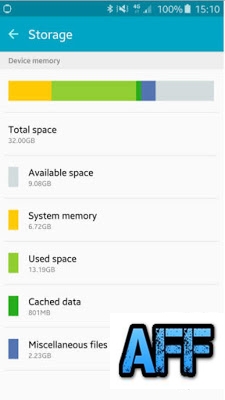 Now as in the above image you can see that there is a Cached data section of 801 mb which is basically useless . So here is How you can clear the cached Data and fix the no storage space available error .
Cached Data is temporary data stored by app developers . What the cached data do is whenever you open any website or app the cached files will be used instead of downloading again from servers .
Advantages :-
The cached data helps in loading the apps and some websites faster .
Disadvantages :-
As we mentioned earlier that the data is stored in your smartphone so it is obvious that it will take space on your smartphone . Sometimes the cached data size can reach upto 1.2gb in size .
It Freezes the smartphone while using some apps .
Makes down the smartphone slow .
So by clearing the cache you will be able to Solve the Insufficient storage available on this device problem .
Name and list of devices updating to android N 7.0 .
Fix insufficient storage available on this device Google playstore error .
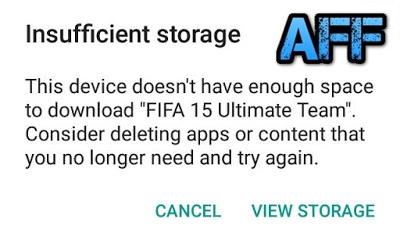 Method 2 to fix insufficient storage error :- Moving Apps to Sdcard .
By default android downloads the apps to Internal storage of smartphone and sometimes due to Many apps we get insufficient storage space error . There are many apps ( Not all ) you can move to Sd card and increase the Space in your internal storage .
Here is How yo can move apps to Sd card to Fix the insufficient storage available in this device error .
Do you get insufficient storage available error while downloading files from google playstore Or When you try to install a app or download a file you see the Less storage space available error on screen ? if yes then you are at right place . Today we are here with a guide on How to Fix Insufficient storage problem in android phone without root .
it happens many time when we want to download any app from Google Playstore and we get Less storage error . The problem of Insufficient storage mainly comes in smartphones like micromax,intex,Samsung,lava,karbonn,xolo and other old brands that doesnt come with features like space optimization . So today in this guide we will tell you How to Fix Insufficient storage problem in android smartphone without root .
How to Fix Insufficient Storage Available error in Google playstore .
So in this guide to solve the insufficient storage available on this device we will use 5 simple methods .
Trick to buy xiaomi redmi note 3 from amazon flash sale .
So starting with the First Method .
Solve Insufficient storage available in this Device Problem By Clearing Cache :-
- First of all Go to the Settings of your android smartphone .
- Now search for Storage settings .
- After going in the storage settings you will see a Option of Cached data , Simply press it . After pressing you will see that the Cached data is now reduced to 0 mb .
- So this was the first way to Solve the Insufficient storage problem in android .
Cached Data is temporary data stored by app developers . What the cached data do is whenever you open any website or app the cached files will be used instead of downloading again from servers .
Advantages :-
The cached data helps in loading the apps and some websites faster .
Disadvantages :-
As we mentioned earlier that the data is stored in your smartphone so it is obvious that it will take space on your smartphone . Sometimes the cached data size can reach upto 1.2gb in size .
It Freezes the smartphone while using some apps .
Makes down the smartphone slow .
So by clearing the cache you will be able to Solve the Insufficient storage available on this device problem .
Name and list of devices updating to android N 7.0 .
Fix insufficient storage available on this device Google playstore error .
By default android downloads the apps to Internal storage of smartphone and sometimes due to Many apps we get insufficient storage space error . There are many apps ( Not all ) you can move to Sd card and increase the Space in your internal storage .
Here is How yo can move apps to Sd card to Fix the insufficient storage available in this device error .
- Goto settings > applications > all .
- Now Open every app on by one .
- Whenever you will open a app you will see a Move To Sdcard option .
- However in some case you will see that the Move to Sdcard option is blurred which means the app cant be moved to sd card .
Method 3 to solve insufficient storage available error .
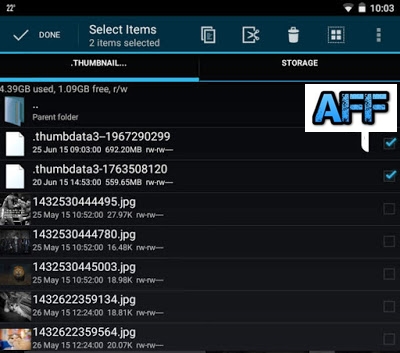
Sometimes the default apps in our android phone start making files itself and they are very big in size . The most common file which we find is the Thumbdata which is created by the gallery application of a android phone .
So here is How you can delete those unwanted apps and Fix Insufficient storage error in android .
- Go to your file explorer .
- Now search for .thumbnail file .
- After searching you will see many results .
- Now delete them one by one .
- After deleting you will see that you will bot receive Insufficient storage available error while downloading apps from google playstore .
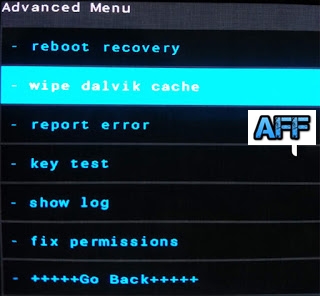
In the 1st method we told you to Clear cached data of apps and that is easy and can be done manually . But what about the System Cache ? So in this Method we will tell you to clear the system cache to solve the insufficient space error .
Here is How to clear dalvik cache to solve the Insufficient storage space error .
- First of all turn off your smartphone .
- After turning off boot the smartphone into cwm recovery .
- To boot into cwm recovery press Volume up + power button together .
- After booting into cwm recovery you will see many option .
- Choose Wipe Cache Partition .
- Then go to advanced settings and Choose wipe dalvik cache .
- After clearing cache go back to main screen and choose Reboot system now .
If still all of the above doesnt works the Try the Last and for Sure working method to Fix the Insufficient storage problem in android .
Method 5 .
In the 5th method we will tell you how to Reset your smartphone to get rid of the Insufficient storage available error .
Please remember that after resting your smartphone you will loose all your apps and files which includes the Images,contacts,songs and every file present on your android smartphone . So it is recommended to take a backup of your smartphone .
- First of all make a backup as mentioned earlier .
- Now go to settings of your smartphone .
- Now you will see a option of Backup/reset .
- Open it .
- And select the last option " Erase data on phone / Factory reset " .
- After selecting you will be asked to confirm resetting the phone .
- Choose Ok .
- The resetting process will be started .
- And after the Successfully Completion the smartphone will be rebooted .
So this was our guide on How to Fix insufficient storage available on this device error while downloading games from google playstore in android , i Hope this guide helped you in solving the Insufficient storage problem in android .

Fix Parse Error – There is a Problem Parsing the Package
Android OS is the most popular smartphone OS as of today, and that must be because of its vast app collection. It is also an open source OS, so yeah that could be the reason as well. So, if an Android user prefers to switch to a new mobile OS, they will look for the apps collection and then decide if they want to make the move. Nevertheless, with all the advantage, the Android OS is not immune to errors and user keeps facing one or another frequently.

One of the oldest and most common error faced by Android users would be the Parse error in Android. The error pops up when you try to install an app on your Android phone. The full error looks like “Parse error – there is a problem parsing the Package”. The error is simple to understand with the error message saying “the application cannot be installed on your phone due to an issue with the parsing.”
If you keep tinkering with the Android apps by making changes to the apps manifest file, then also, the “Parse error” in Android would occur. There are several reasons for the Parse error in Android and today we will be discussing the possible solutions to fix the parse error in Android.
This solution is only for the people who keep messing with apps Manifest file to make a modification to it. So, if you are one of them and made any changes to the Apps Androidmanifest.xml file then try restoring the file to its default state. Things you need to make sure to fix the parse error while installing an Android app:
The name of the .apk has been changed – So, if the original .apk was named as original.apk, and you renamed it to original1.apk then you may need to rename it to its original name that is “Original.apk”.
Once renamed, try to install the app on your Android phone and see if the parse error has been resolved.
The problem with your App’s code – Well, this isn’t something that I can troubleshoot and say what went wrong. But, if there is a problem with your code, you may need to look into that.
Fix 2: Allow Apps Installation from Unknown Sources
For the security reasons, the Android smartphone does not allow you to install apps from third-party sources or sources apart from the Google Play Store. Installing third-party apps from unknown sources can harm your Android phone.
So, if you are trying to install a .apk file then you may face the “parse error – there is an error parsing the package”. To fix this, what you can do here is allow app installation from the unknown sources. You can find the settings to the same under Security settings of your phone.
To allow app installation from the unknown sources, go to Settings and look for Security option under “Input and Control.”
Tap on Security and under Device administrators tap on “Unknown Sources, allows installation of apps from unknown sources”. If asked to confirm, tap OK.
Go back to the folder where you have the .apk located. Tap on it and install the app without parse error.
Fix 3: Enable USB Debugging
Enabling USB debugging isn’t really necessary for installing Android apps using the .apk file. But, for some users, enabling the USB debugging seems to have worked very well.
To enable USB debugging, you need to enable Developer Option in your Android phone first.
To enable “Developer option” go to, Settings, scroll down and tap on About Phone and then tap seven times on the “Build Number”. You should see a “You are now a developer” message on the screen.
Next, go to Settings again, scroll down and tap on Developer Options. Under developer options, tap on USB debugging and enable it.
The procedure to enable USB debugging for different devices will be different. There are dedicated websites such Enable USB Debugging with detailed instructions to do the same.
Fix 4: Disable Antivirus
The parse error can also occur if your security application is blocking the installation. Most of the Antivirus try to block the installation of the applications that may look untrusted or suspicious. So, if you are trying to install a .apk, the possibility is that your Antivirus app might be blocking the .apk file and preventing the installation.
So, try disabling the Antivirus temporarily and try to install the .apk file. This time, you should be able to install the .apk file without receiving any parse error in Android.
Fix 5: Corrupted APK or Partially Downloaded File
The phrase error – there is a problem parsing the package error can also occur due to a corrupted .apk file. Try downloading the fresh apk and install it. See if this can resolve the error. Also, make sure you download the complete file. Sometimes, you may partially download a .apk file and face Parse error while installing it.
Fix 6: Incompatible App
Some Android apps do not support the older version of the Android OS. Some apps do not support the older hardware of the smartphone. So, when you try to install an app which requires Android 4.4 KitKat above on an Android 4.3 Jelly Bean running smartphone then you will get “Parse error – there is a problem parsing the package” message. So, make sure you read the app description about the requirement on the Google Play Store.
One of the oldest and most common error faced by Android users would be the Parse error in Android. The error pops up when you try to install an app on your Android phone. The full error looks like “Parse error – there is a problem parsing the Package”. The error is simple to understand with the error message saying “the application cannot be installed on your phone due to an issue with the parsing.”
If you keep tinkering with the Android apps by making changes to the apps manifest file, then also, the “Parse error” in Android would occur. There are several reasons for the Parse error in Android and today we will be discussing the possible solutions to fix the parse error in Android.
Causes of the Parse error in Android?
- Before we proceed to the fixes, let’s see what can cause Parse error in Android. The parse error occurs while installing an Android app on your phone. But, the causes can be different.
- Parse error can occur if you have made changes to the app’s manifest file like changing the Android version.
- It can also occur due to a corrupted .apk file or may because of a partially downloaded apk file.
- Not enough permission to install third-party apps from unknown sources.
- Your Android smartphone OS version or the hardware is not compatible with the app.
- A third-party security application is blocking the app installation.
Fix Parse Error – There is a Problem Parsing the Package
Fix 1: Check Your Apps Manifest FileThis solution is only for the people who keep messing with apps Manifest file to make a modification to it. So, if you are one of them and made any changes to the Apps Androidmanifest.xml file then try restoring the file to its default state. Things you need to make sure to fix the parse error while installing an Android app:
The name of the .apk has been changed – So, if the original .apk was named as original.apk, and you renamed it to original1.apk then you may need to rename it to its original name that is “Original.apk”.
Once renamed, try to install the app on your Android phone and see if the parse error has been resolved.
The problem with your App’s code – Well, this isn’t something that I can troubleshoot and say what went wrong. But, if there is a problem with your code, you may need to look into that.
Fix 2: Allow Apps Installation from Unknown Sources
For the security reasons, the Android smartphone does not allow you to install apps from third-party sources or sources apart from the Google Play Store. Installing third-party apps from unknown sources can harm your Android phone.
So, if you are trying to install a .apk file then you may face the “parse error – there is an error parsing the package”. To fix this, what you can do here is allow app installation from the unknown sources. You can find the settings to the same under Security settings of your phone.
To allow app installation from the unknown sources, go to Settings and look for Security option under “Input and Control.”
Tap on Security and under Device administrators tap on “Unknown Sources, allows installation of apps from unknown sources”. If asked to confirm, tap OK.
Go back to the folder where you have the .apk located. Tap on it and install the app without parse error.
Fix 3: Enable USB Debugging
Enabling USB debugging isn’t really necessary for installing Android apps using the .apk file. But, for some users, enabling the USB debugging seems to have worked very well.
To enable USB debugging, you need to enable Developer Option in your Android phone first.
To enable “Developer option” go to, Settings, scroll down and tap on About Phone and then tap seven times on the “Build Number”. You should see a “You are now a developer” message on the screen.
Next, go to Settings again, scroll down and tap on Developer Options. Under developer options, tap on USB debugging and enable it.
The procedure to enable USB debugging for different devices will be different. There are dedicated websites such Enable USB Debugging with detailed instructions to do the same.
Fix 4: Disable Antivirus
The parse error can also occur if your security application is blocking the installation. Most of the Antivirus try to block the installation of the applications that may look untrusted or suspicious. So, if you are trying to install a .apk, the possibility is that your Antivirus app might be blocking the .apk file and preventing the installation.
So, try disabling the Antivirus temporarily and try to install the .apk file. This time, you should be able to install the .apk file without receiving any parse error in Android.
Fix 5: Corrupted APK or Partially Downloaded File
The phrase error – there is a problem parsing the package error can also occur due to a corrupted .apk file. Try downloading the fresh apk and install it. See if this can resolve the error. Also, make sure you download the complete file. Sometimes, you may partially download a .apk file and face Parse error while installing it.
Fix 6: Incompatible App
Some Android apps do not support the older version of the Android OS. Some apps do not support the older hardware of the smartphone. So, when you try to install an app which requires Android 4.4 KitKat above on an Android 4.3 Jelly Bean running smartphone then you will get “Parse error – there is a problem parsing the package” message. So, make sure you read the app description about the requirement on the Google Play Store.
Oppo R827T Hang on Logo Problem Solve by Miracle Box
How to flash write firmware Oppo R827T hang on logo solve by Miracle Box
Oppo R827T When Hard Reset Failed you can your phone

Write flash done

Subscribe to:
Posts (Atom)